The test of real online booking
A patient books on the website at 9pm. At 8am the next morning, is the appointment in the practice management system's diary, against the right clinician, as the right appointment type, with the patient's details attached, and was the patient sent a confirmation and a reminder? If yes, the practice has online booking. If reception has to read an email and type it in, the practice has a request form with extra steps.
Here is how to set up the real thing.
Step 1: use the practice management system's own booking
Dentally, Software of Excellence (EXACT), Dentrix Ascend, Curve, Open Dental and most other current systems include an online booking module or patient portal that reads and writes the live diary. This is the only route to bookings that land without re-keying. Third-party generic tools (Calendly, Acuity) create a second diary; avoid them unless your system genuinely has no option, and then consider a dental-specific layer that syncs.
If your system's online booking is switched off or never configured, that is the first task, and it is done in the system's settings, not on the website.
Step 2: configure what is bookable
In the system, decide:
- Appointment types exposed online. New patient exam, hygiene, emergency, consultation for a specific treatment. Not everything; long or complex treatments stay staff-booked.
- Clinicians and their online availability. Which dentists and hygienists take online bookings, and which of their slots are exposed. Many practices expose a portion of the diary online and keep the rest for phone bookings and follow-ups.
- Durations and buffers per appointment type.
- New versus existing patients. New patients register in the flow; existing patients are matched by details or log in.
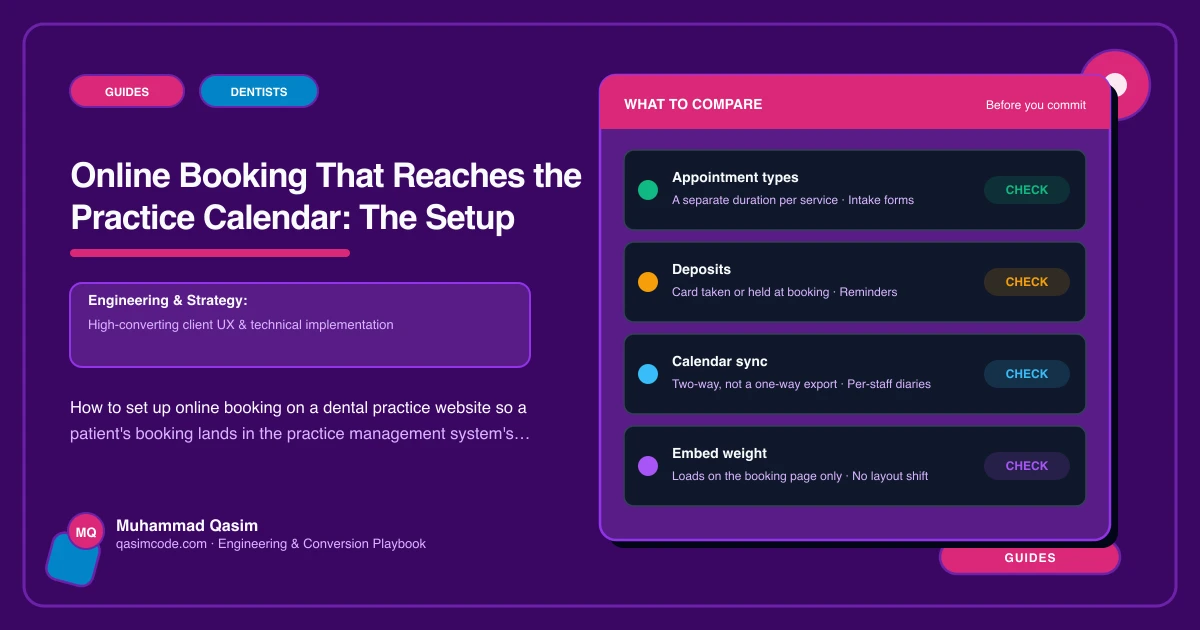
- Deposits, if the practice takes them for new-patient or high-value slots, via the system's payment integration.
- Confirmation and reminder messages, by SMS and email, with the practice's wording and the practical details (parking, arrival time, what to bring).
- Minimum notice (how close to the slot a patient can book) and maximum advance.
Test it as a patient before it goes anywhere near the website.
Step 3: put it on the website properly
A Book button in the header on every page, visible on a phone without scrolling, linking to the booking flow. This is the single most important element on the site.
Deep links per treatment. Most systems accept URL parameters that pre-select an appointment type or clinician. The hygiene page's Book button pre-selects hygiene; the implants page's button pre-selects the implant consultation. Fewer choices for the patient, fewer wrong bookings for reception.
Book-with-this-dentist buttons on each clinician's profile.
Embed or link? If the system offers an embeddable widget that behaves well on phones, embed it on a dedicated /book page (not on every page, which slows the site). If the embed is heavy or awkward in phone browsers, link to the system's hosted booking page with your branding. Either is fine; the patient does not mind leaving your domain to book if the flow is smooth.
A dedicated booking page at /book, so the URL can go on voicemail, Google Business Profile, Instagram and printed material.
An emergency path. An emergency page with a Book button that pre-selects the emergency appointment type, plus the phone number.
A fallback. The phone number and a callback form beside the booking widget, for patients who will not self-book.
Step 4: connect the rest
- Google Business Profile booking link pointing at
/book. - Voicemail mentioning online booking.
- Recall messages from the practice management system linking to
/book. - Intake forms sent automatically on booking for new patients, from the system or a linked form tool that handles health data properly.
- Tracking: a
booking_clickevent on every Book button, and completed bookings by source from the system's report.
Step 5: test end to end, then monthly
As a new patient on a phone: land on the site, tap Book, choose an appointment, complete it, receive the confirmation, receive the intake form. Then check the diary: right clinician, right type, patient details present. Then cancel the test.
Repeat monthly, because practice management system updates change portal behaviour, and a booking flow that silently broke is a practice that stopped taking online bookings without knowing.
What goes wrong
- Too little exposed. One clinician, two slots a week: patients see "no availability" and leave. Expose enough to be useful.
- Fourteen fields before a slot. Medical history belongs in the intake form after booking, not in the booking form.
- A widget that does not load in Instagram's browser. Test there; link to the hosted page if it fails.
- Nobody checks the confirmations. Online bookings should be part of the morning huddle.
- Reminders off. No-shows rise. Turn them on with the system's default timing (a few days and a day before).
Where this sits
Configuring the practice's own system and wiring it into the site with deep links, a dedicated page and tracking is the core of how we build dental practice websites. The system is the practice's choice; making it one tap away from every page and confirming without reception's involvement is the website's job.